
Read first, then play
Phone Camera, Selfies, Gallery, and Snapmatic
The Camera app takes photos and selfies with filters; Snapmatic is read-and-follow only.
How to do it
- Step 1:
Up on the D-pad opens the phone; the Camera app is in the top row.
The Camera app is in the top row, third from the left. - Step 2:
Switch to the front camera with the selfie button and take the photo; the prompt bar in the bottom right shows the buttons.
- Step 3:
With the rear camera, you zoom, pick one of 17 filters, and hide the grid.
- Step 4:
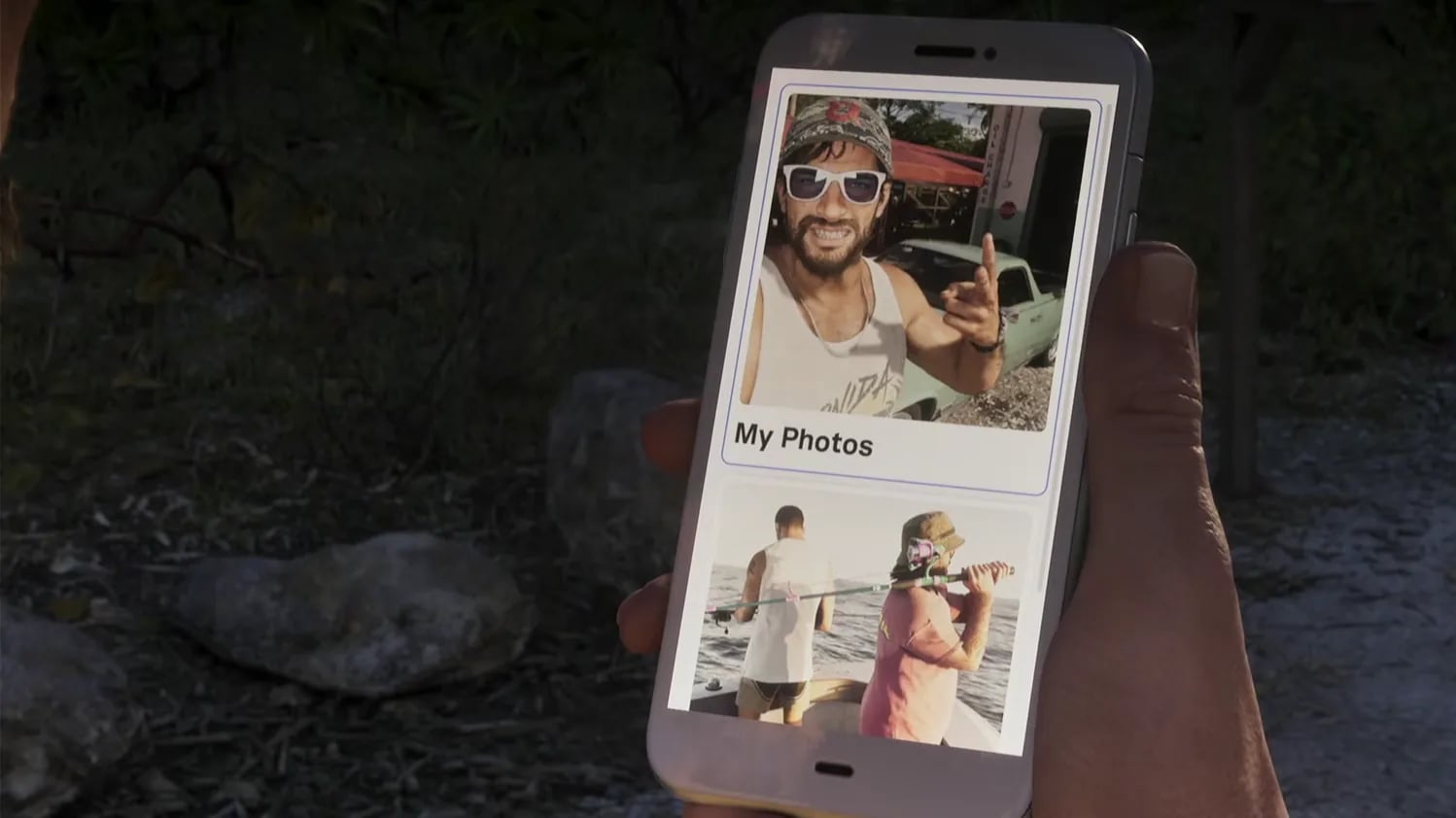
The Gallery shows your photos (32 slots) and pictures from the story.
The Gallery shows how many of the 32 slots are taken. - Step 5:
Snapmatic is a feed for browsing and following; you can't upload your own photos there.
Snapmatic shows other people's posts; you can't post.
Keep in mind
Good to know
If you want to compose a photo properly, you're better off using Photo Studio in the pause menu. Under Settings > Camera > Comfort, you can switch the phone view to first-person.
There's more to see
More images
Does it work for you?
Your vote turns the “Verified” stamp into “Confirmed”.
Keep going
More like this
 Gameplay
All Phone Apps: What They Do and When They Unlock
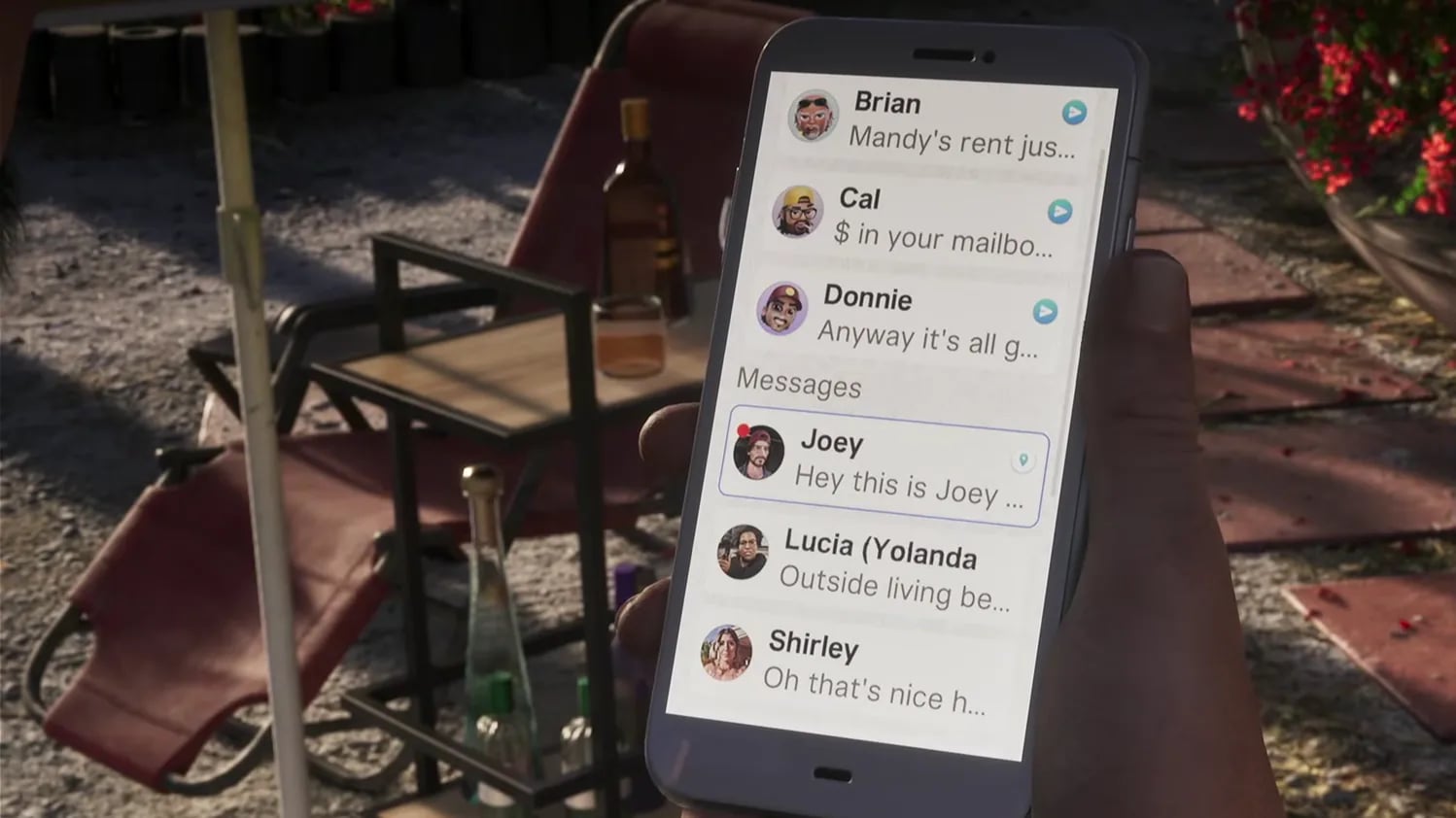
You open the phone with up on the D-pad; here are its apps and what you need to unlock them.
 Gameplay
Calling Your Car: Joey and Scooter Bros
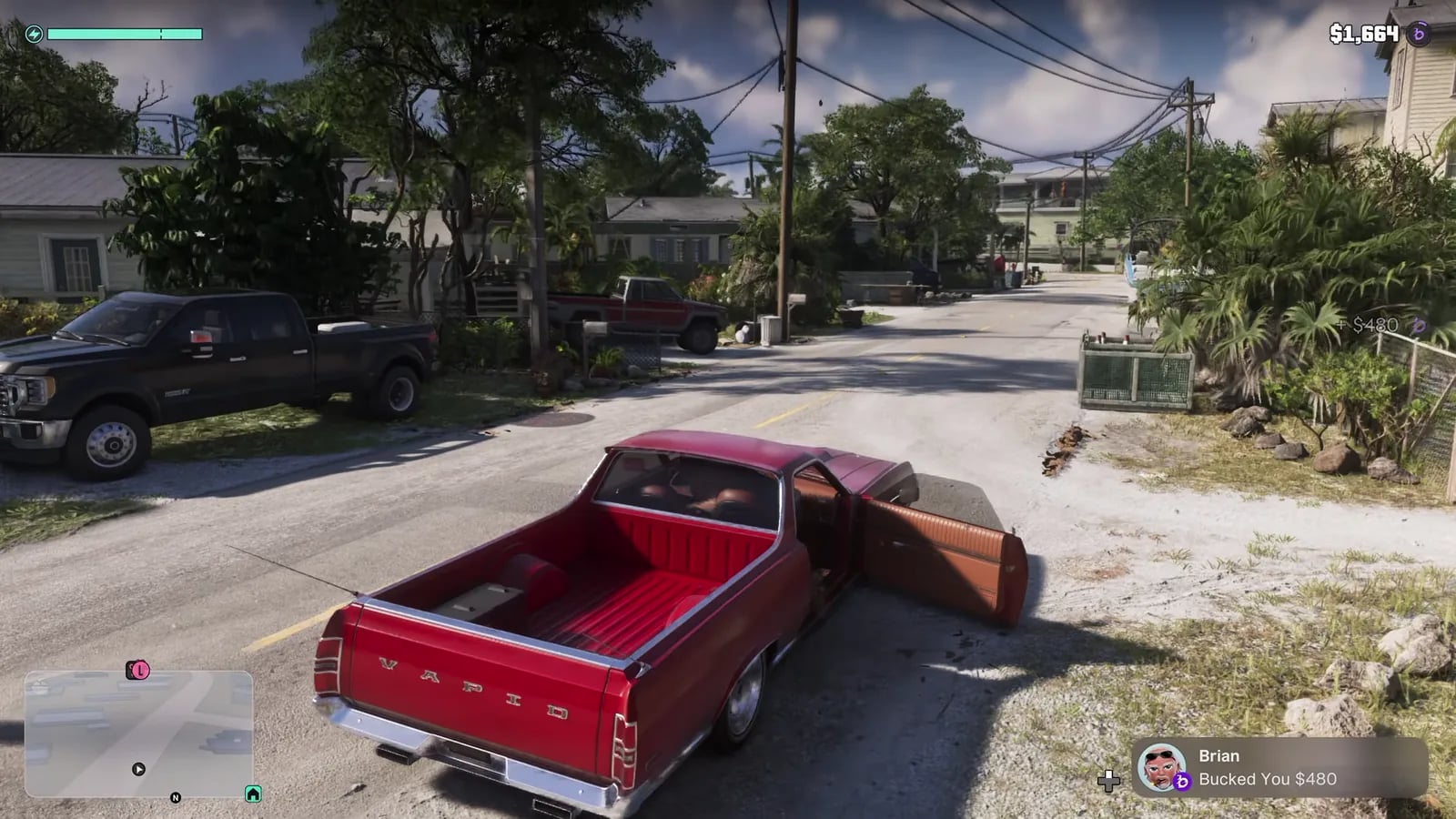
Your registered car comes to you via phone: free through Joey in Chapter 1, then for a fee through the Scooter Bros app.
 Gameplay
Camera: Height, Cinematic, and Phone View
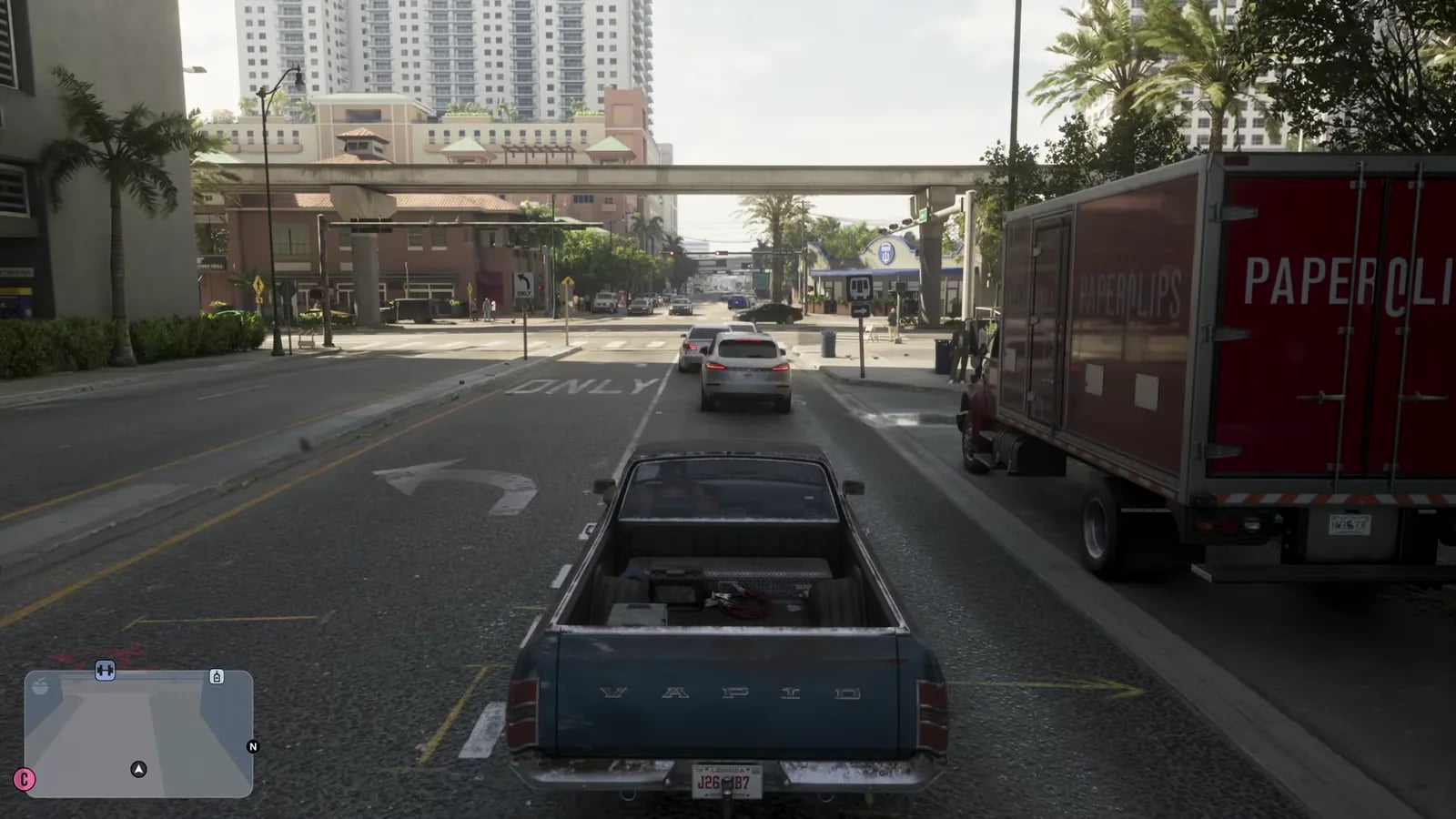
GTA 6 has no full first-person mode; you set the camera height on foot and in vehicles in the settings.
Watch the video
Rather see it in action? The video starts right at the good part.