Read first, then play
Camera: Height, Cinematic, and Phone View
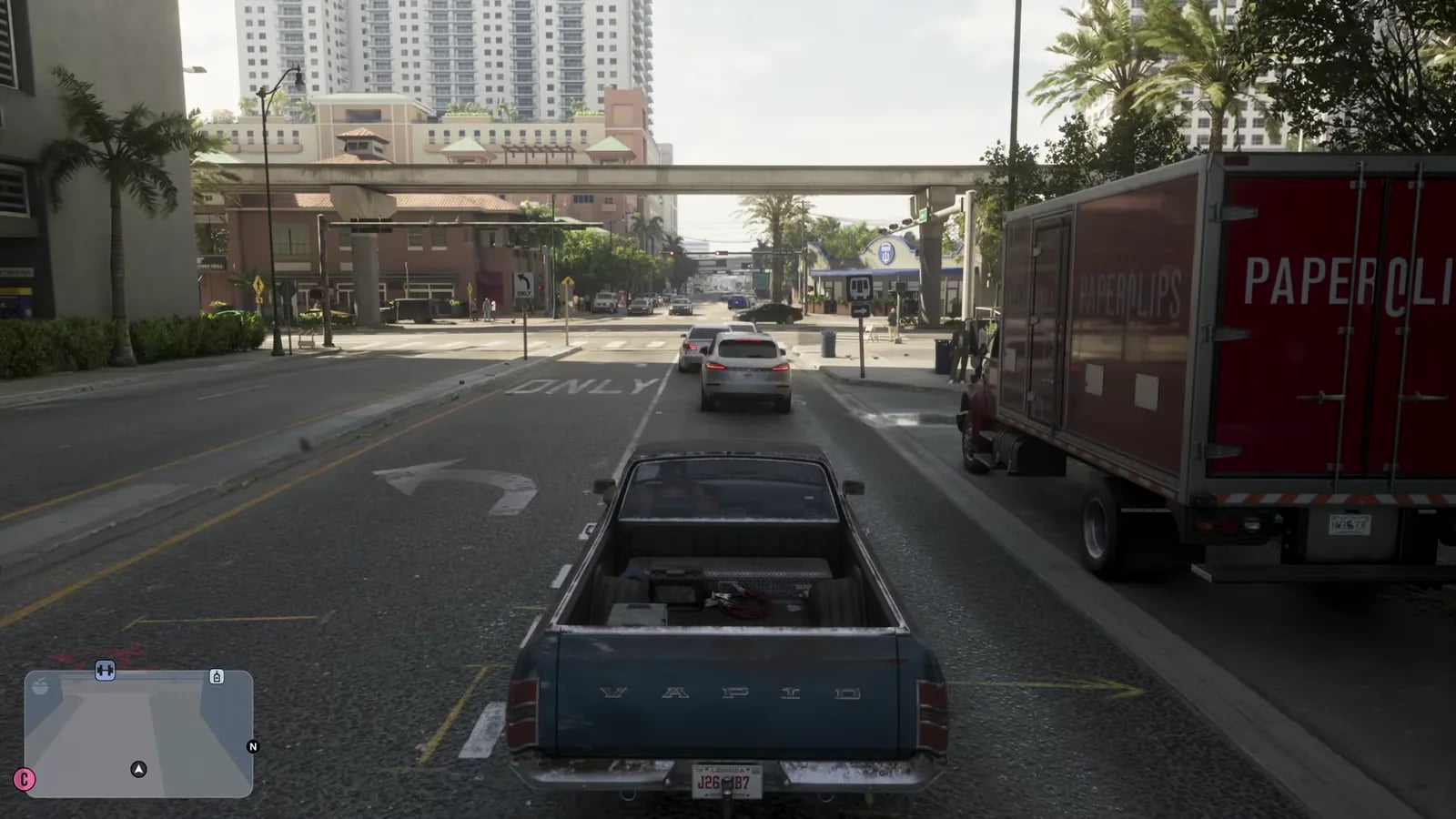
GTA 6 has no full first-person mode; you set the camera height on foot and in vehicles in the settings.
How to do it
- Step 1:
Settings > Camera: under “On Foot” you set Height (On Foot), under “Land & Water Vehicles” Height (All Vehicles), each in three levels (Low and Medium in the screenshot).
Camera: height on foot and in vehicles. - Step 2:
Choose the Cinematic camera for vehicles; it's the only one where you can turn on Auto Drive.
- Step 3:
First-person aiming: with suitable weapons, such as ones with a scope, you switch to a first-person view when aiming; the preview “Aiming” under Settings > Control Scheme shows the buttons.
- Step 4:
First-person phone: under Settings > Camera > Comfort you change “Phone Display”; the view also applies in the car.
Comfort: “Phone Display” at the bottom.
Keep in mind
Good to know
Rockstar has confirmed that the game is built around the third-person camera and has no first-person view at launch. You also set follow speed, follow delay, camera shake, and bob under Settings > Camera.
There's more to see
More images
Does it work for you?
Your vote turns the “Verified” stamp into “Confirmed”.
Keep going
More like this
 Gameplay
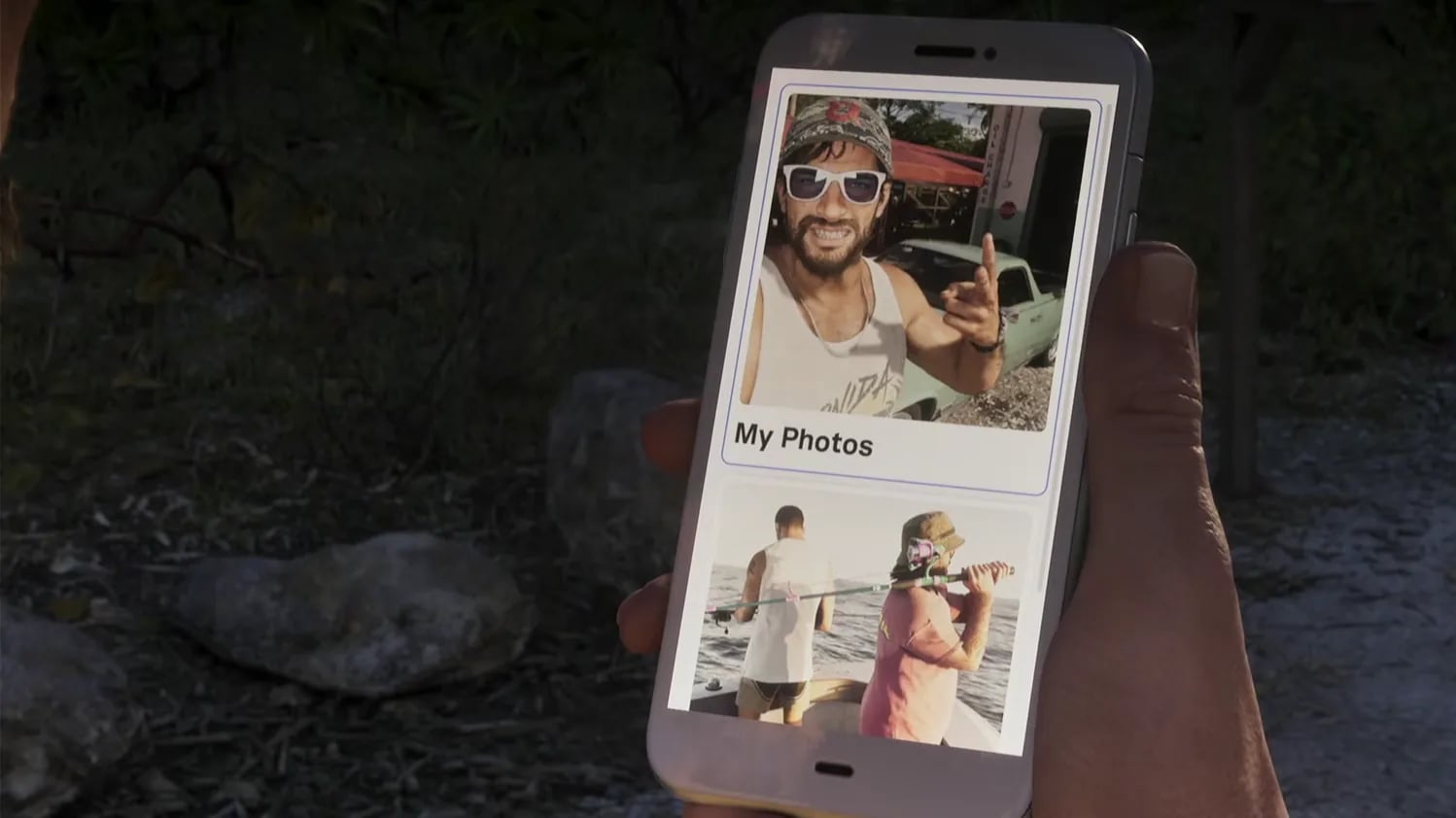
Phone Camera, Selfies, Gallery, and Snapmatic
The Camera app takes photos and selfies with filters; Snapmatic is read-and-follow only.
 Gameplay
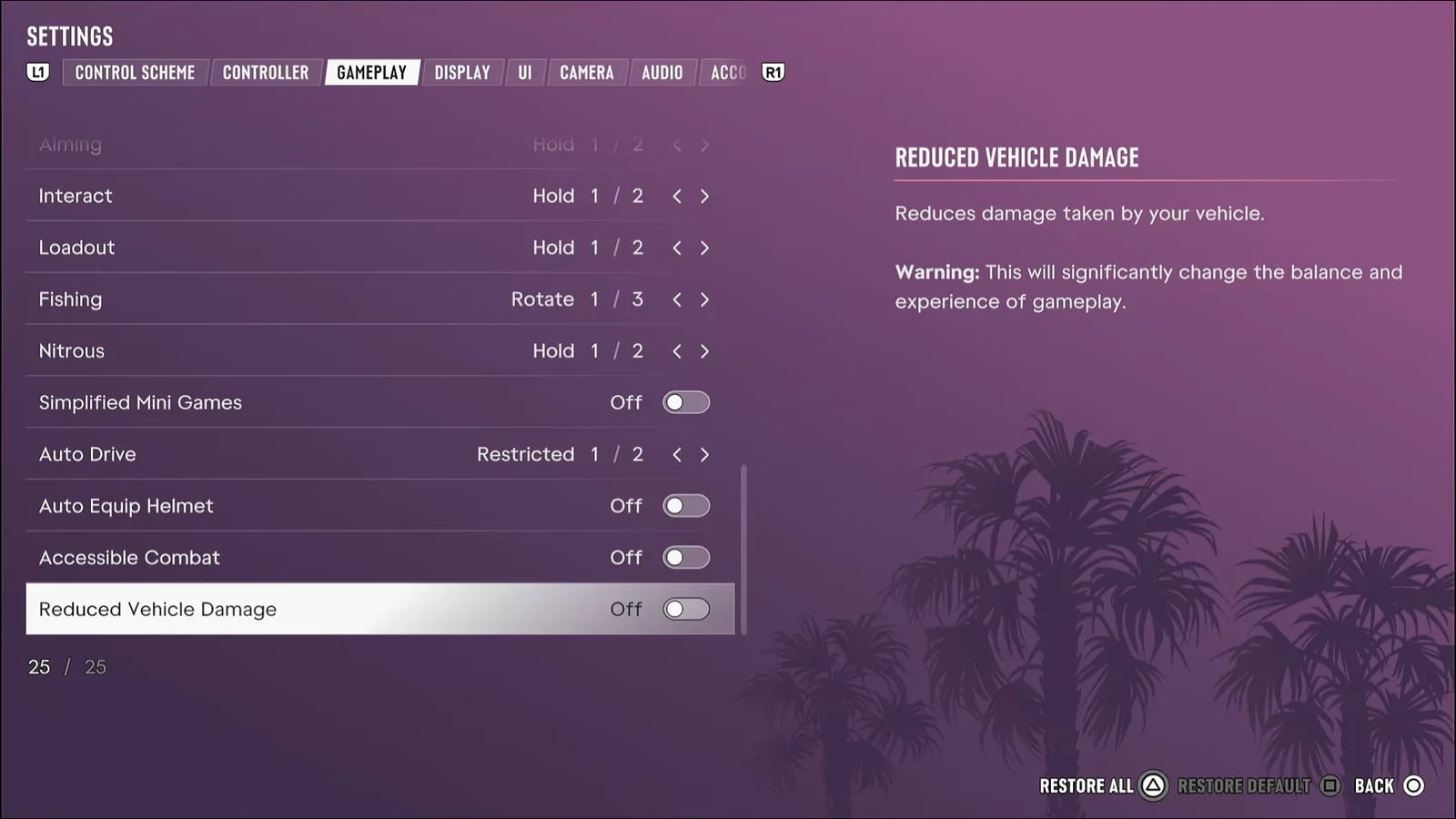
Accessibility: All Options and Where to Find Them
Make tapping and holding easier, lower combat and vehicle damage, text size, subtitles, and screen narration: where to find what.
 Gameplay
Settings: What Each Tab Does
Control Scheme, Controller, Gameplay, Display, UI, Camera, Audio, and Account: here's what's in each of the eight tabs.
Watch the video
Rather see it in action? The video starts right at the good part.